

Nova Cloud offers three rental types, each designed for different workloads and budgets. Choosing the right type can save you significant money depending on your use case.Documentation Index
Fetch the complete documentation index at: https://docs.nova-cloud.ai/llms.txt
Use this file to discover all available pages before exploring further.
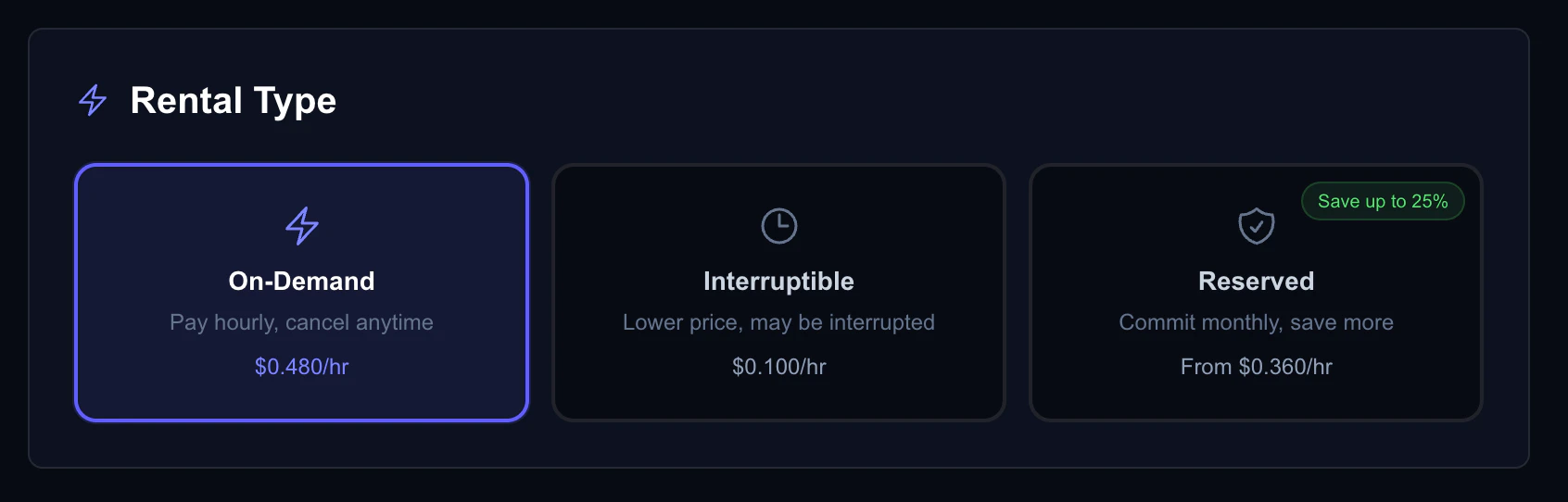
Overview
| On-Demand | Interruptible | Reserved | |
|---|---|---|---|
| Pricing | Standard hourly rate | Lowest rate (up to 80% off) | Discounted rate (up to 20% off) |
| Commitment | None | None | 1, 3, or 6 months |
| Payment | Pay-as-you-go | Pay-as-you-go | Upfront deposit |
| Preemption Risk | None | Can be interrupted | None |
| Best For | Production, development | Batch jobs, training | Long-running workloads |
On-Demand Instances
On-demand instances are the standard rental type and the best choice for most users getting started. You pay the listed hourly rate with no commitment, and your instance runs until you stop or destroy it.How to Create an On-Demand Instance
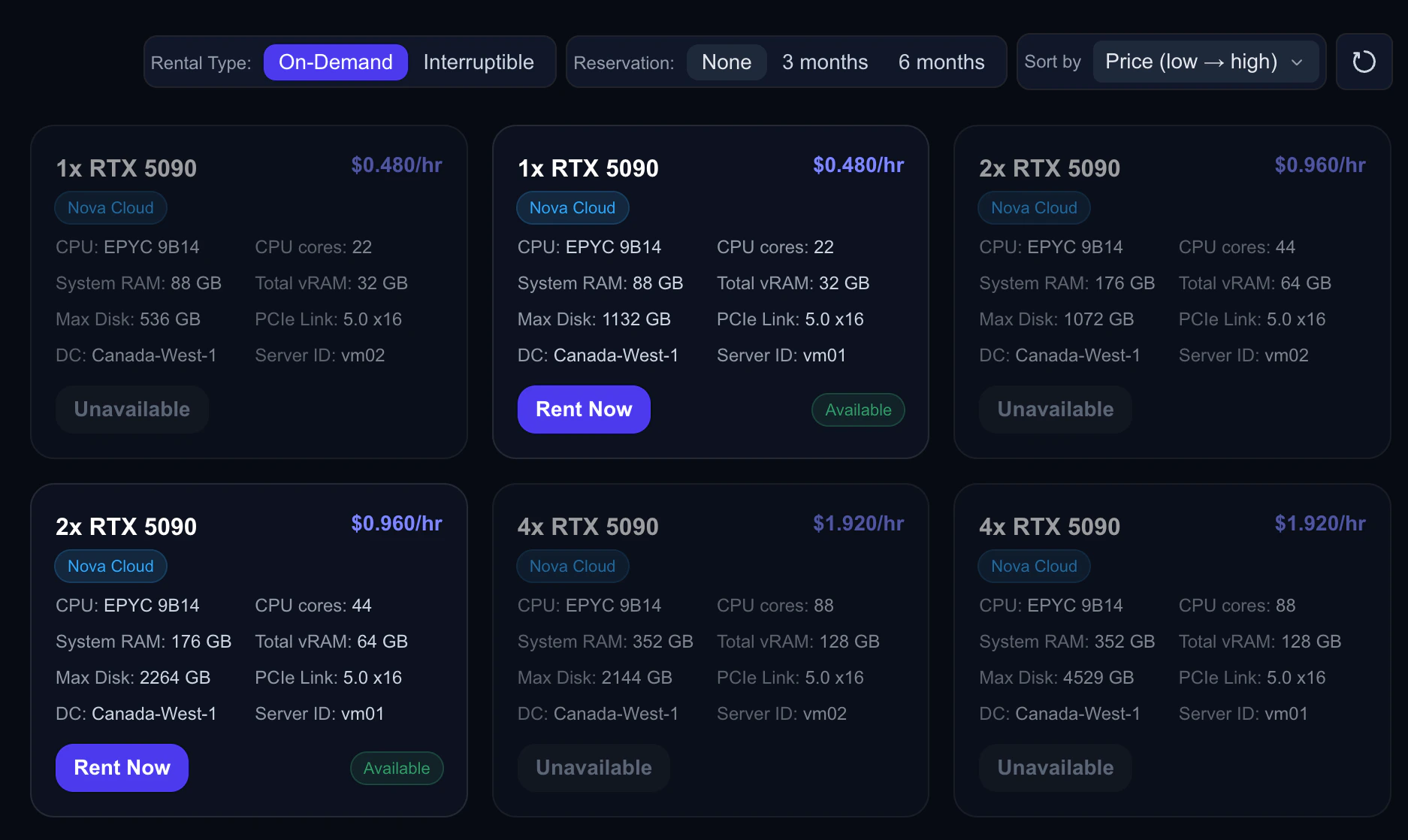
- Go to the Dashboard and browse available GPUs
- Click Create Instance on an offer
- Select On-Demand as the rental type
- Configure your template, storage, and SSH key
- Click Create
Billing
- GPU — Billed per second at the listed hourly rate
- Storage — Billed per second, even when the VM is stopped
- Network — Billed at $2/TB
When to Use On-Demand
- Interactive development and debugging
- Production inference workloads
- Workloads that cannot tolerate interruption
- Short experiments and testing
- Your first time using Nova Cloud — start here to learn the platform
Interruptible Instances
Interruptible instances run at a significantly lower price but can be preempted (stopped) if the GPU is needed for an on-demand customer. Think of them as “spot” instances.How to Create an Interruptible Instance
- Go to the Dashboard and browse available GPUs
- Click Create Instance on an offer
- Select Interruptible as the rental type
- Configure your template, storage, and SSH key
- Click Create
Billing
- GPU — Billed per second at the lower interruptible rate (typically 50–80% cheaper)
- Storage — Billed per second (continues even while interrupted)
- Network — Billed at $2/TB
- You are not charged for GPU time while your VM is interrupted
What Happens When You’re Preempted
When your interruptible VM is preempted:- The VM status changes to Interrupted in the dashboard
- Running processes are stopped (similar to a power-off)
- Your data on disk is preserved
- Auto-restart is enabled by default — your VM will automatically restart when a GPU becomes available
- The system checks every 60 seconds for available capacity
- After 7 days without restart, auto-restart is disabled
When to Use Interruptible
- Large-scale training with checkpointing
- Batch processing and data pipelines
- Non-interactive computation
- Any workload that can handle occasional restarts
- When you want the lowest possible price
Reserved Instances
Reserved instances offer a discounted rate in exchange for a time commitment. You pay an upfront deposit covering the entire reservation period and receive a lower hourly rate.How to Create a Reserved Instance
- Go to the Dashboard and browse available GPUs
- Click Create Instance on an offer
- Select Reserved as the rental type
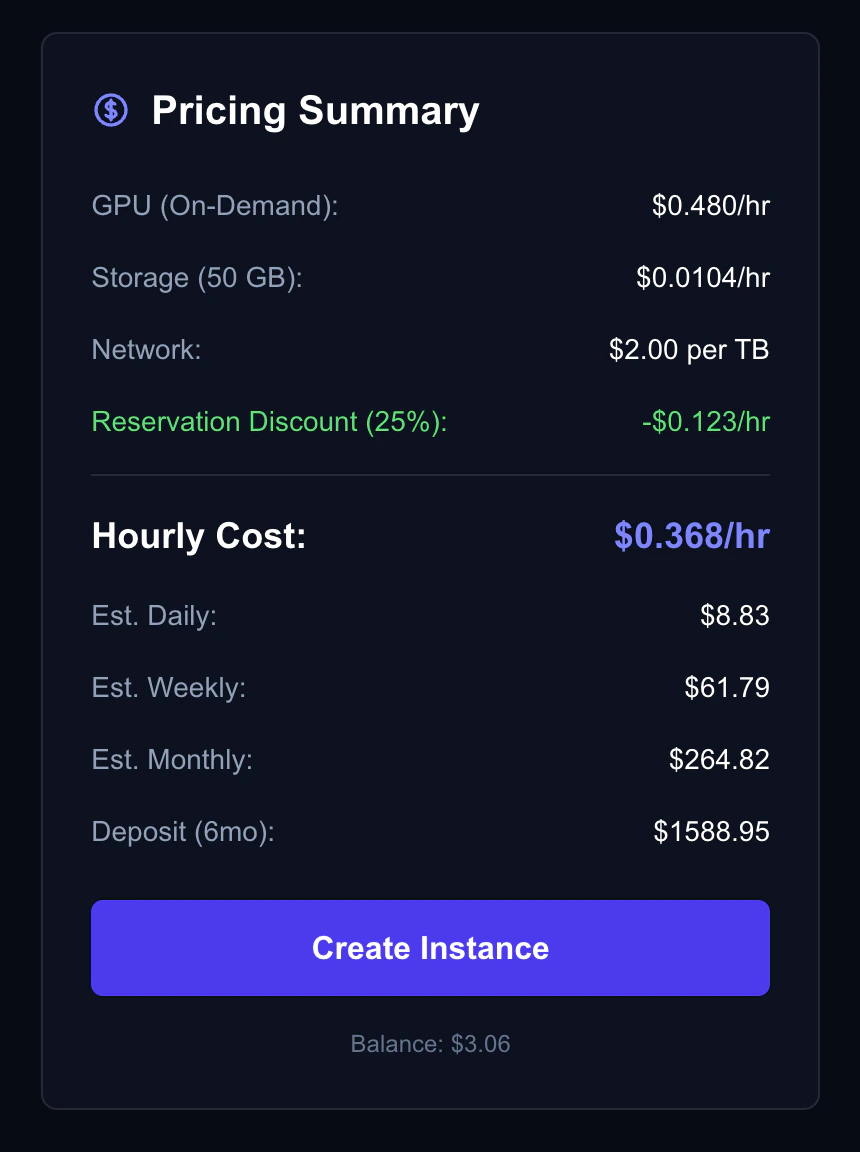
- Choose a commitment period: 1 month, 3 months, or 6 months
- Review the deposit amount and discounted rate
- Click Create — the deposit is deducted from your credit balance
Discount Tiers
| Commitment | Discount | Example Savings (5090 at $0.50/hr) |
|---|---|---|
| 1 month | 3.33% | $0.483/hr — save ~$12/month |
| 3 months | 10.00% | $0.450/hr — save ~$108 over 3 months |
| 6 months | 20.00% | $0.400/hr — save ~$432 over 6 months |
Deposit Calculation
The deposit is calculated as:- Discounted rate: $0.45/hr
- Deposit: $0.45 × 720 × 3 = $972.00
GPU and storage costs are deducted from the reservation balance. Network costs are always charged from your regular credit balance (pay-as-you-go).
When the Reservation Ends
When the reservation balance is depleted or the commitment period expires, the VM automatically converts to on-demand billing. You’ll see the status change in your dashboard.Cancellation Policy
You can cancel a reservation at any time from the dashboard, but a 25% early termination fee is applied to the remaining balance:- 75% of the remaining balance is refunded to your credit balance
- 25% is retained as the cancellation fee
- The VM is stopped upon cancellation
When to Use Reserved
- Continuous training jobs running 24/7
- Production inference with predictable load
- Any workload that will run consistently for 1+ months
- When you want guaranteed capacity (no preemption risk)
Choosing the Right Type
Are you new to Nova Cloud?
Start with On-Demand to get familiar with the platform. You can always switch later.
Can your workload handle interruptions?
If yes, consider Interruptible for the lowest prices. If not, stick with On-Demand or Reserved.
Will you run the workload for more than a month?
If yes, Reserved instances offer significant savings. The longer the commitment, the bigger the discount.
Decision Matrix
| Scenario | Recommended Type |
|---|---|
| First time trying Nova Cloud | On-Demand |
| Training a model for a few hours | On-Demand |
| Running a 3-month fine-tuning job | Reserved (3 months) |
| Processing a large batch dataset overnight | Interruptible |
| Hosting a production inference API | On-Demand or Reserved |
| Experimenting with different GPU configs | On-Demand |
| Cost-sensitive research with checkpointing | Interruptible |
Switching Between Types
- You cannot change the rental type of a running VM
- To switch types, destroy the current VM and create a new one with the desired type
- For reserved instances that expire, the VM automatically converts to on-demand billing