

This guide walks you through creating an account, adding funds, and launching your first GPU-powered virtual machine — all from the web console.Documentation Index
Fetch the complete documentation index at: https://docs.nova-cloud.ai/llms.txt
Use this file to discover all available pages before exploring further.
Prerequisites
- An email address or Google account
- A credit card for adding credits
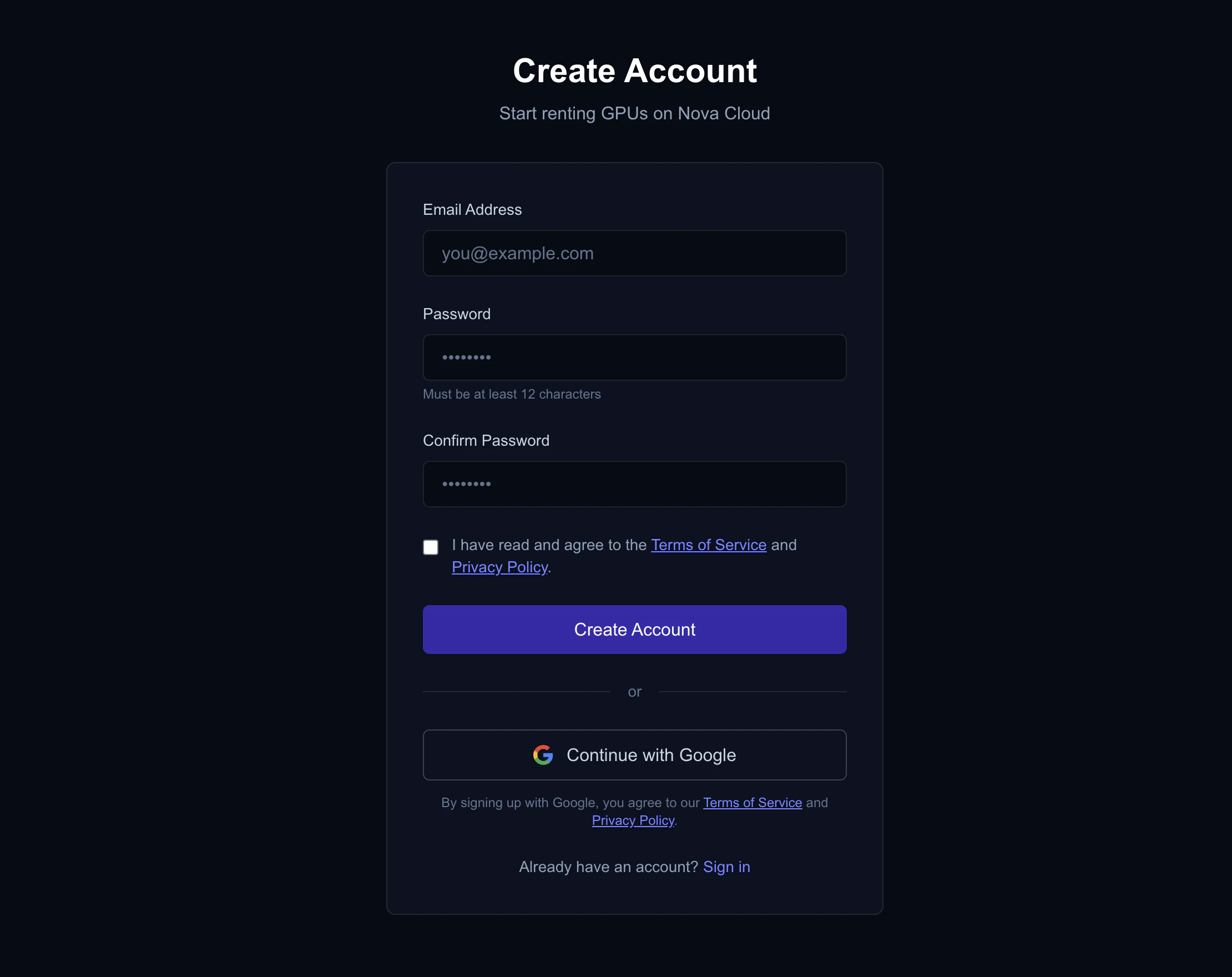
Step 1: Create Your Account
- Go to console.nova-cloud.ai/signup
- Sign up with email/password or Google OAuth
- Verify your email (automatic on Google Sign in) — required to be eligible for the signup bonus
Step 2: Add Credits & Unlock Your Signup Bonus
- In the console, go to the Billing section
- Click Add Credits
- Add at least $5 via credit card
- Your signup bonus (a dollar-for-dollar match of your deposit, up to $25) is automatically applied once the deposit clears
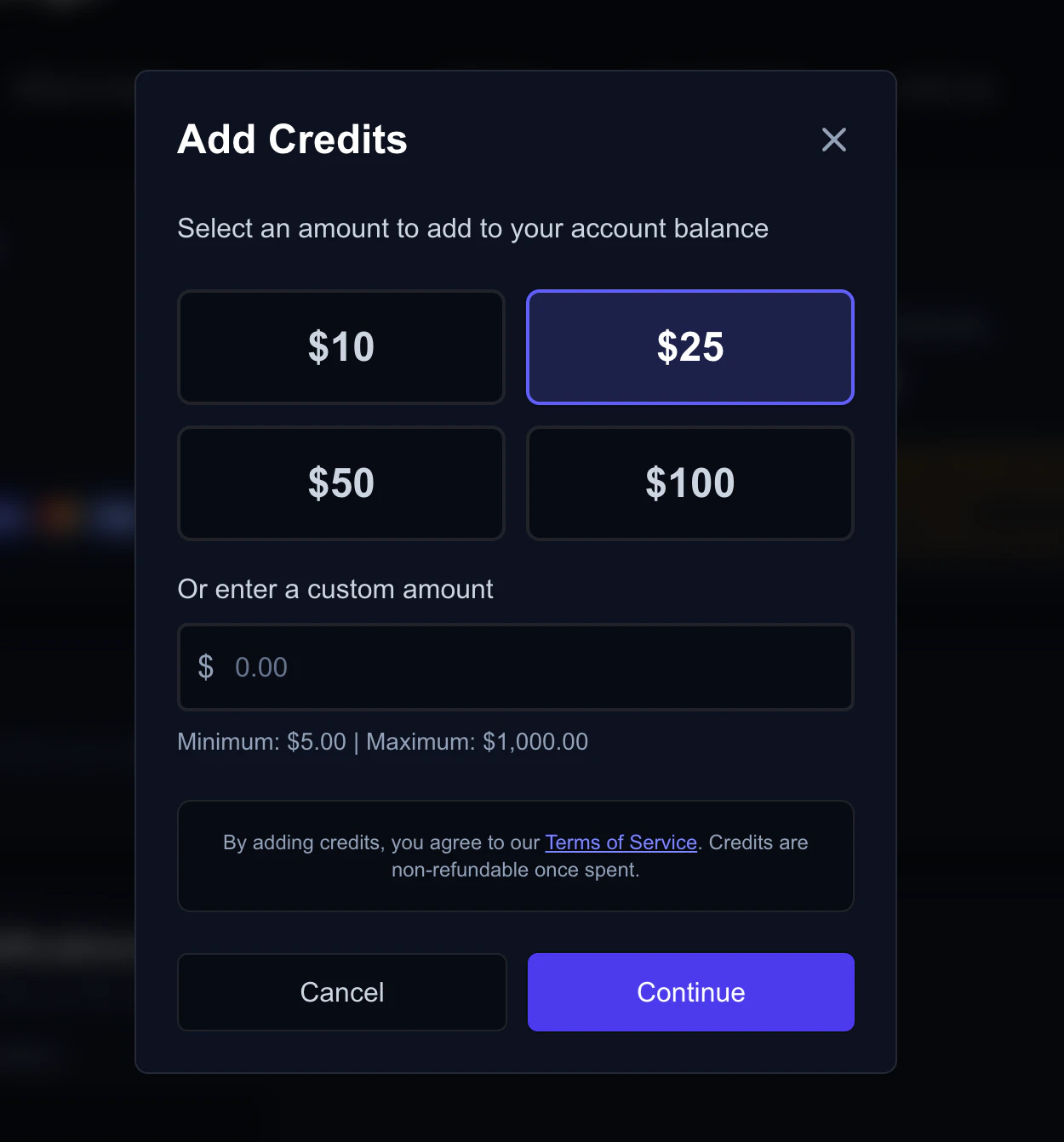
We match your first deposit dollar-for-dollar, up to $25 in bonus credit. Minimum deposit is $5 — deposit $5 and you get $5 bonus, deposit $25 or more and you get the full $25.
Step 3: Generate & Upload Your SSH Key
SSH keys let you securely connect to your VMs without a password. If you already have an SSH key, skip to Upload Your Key below.- Mac
- Windows
- Linux
- Open the Terminal app (search for “Terminal” in Spotlight, or find it in Applications → Utilities)
- Paste this command and press Enter:
- When asked where to save the file, just press Enter to use the default location
- When asked for a passphrase, press Enter twice (or type a passphrase for extra security)
- Copy your public key to the clipboard:
Upload Your Key
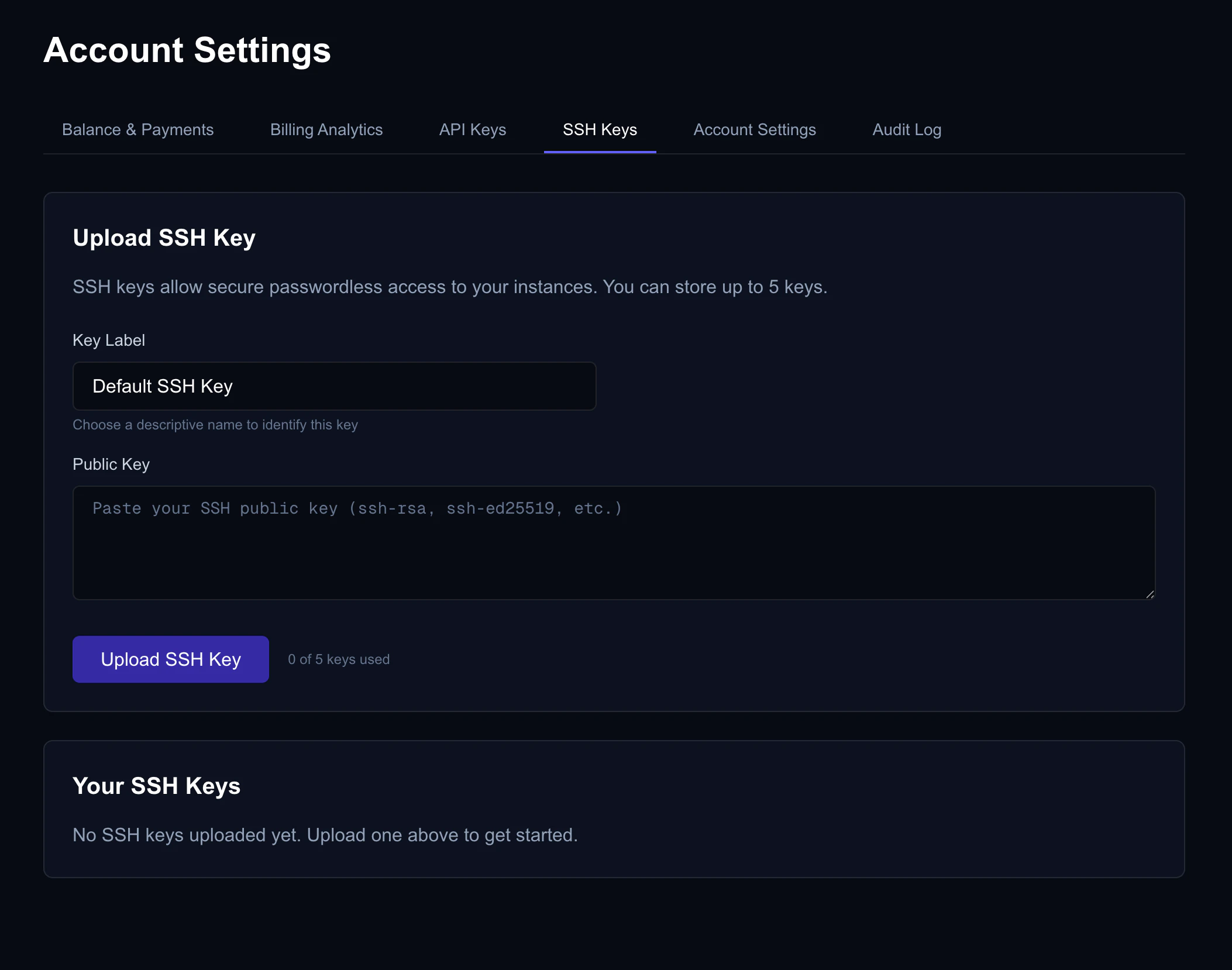
- In the console, go to Account Settings → SSH Keys
- Click Add SSH Key
- Paste your public key (the text you just copied)
- Give it a name like “My Laptop”
- Click Save
Need more help with SSH keys?
Detailed guide with troubleshooting tips for all platforms.
Step 4: Launch a VM
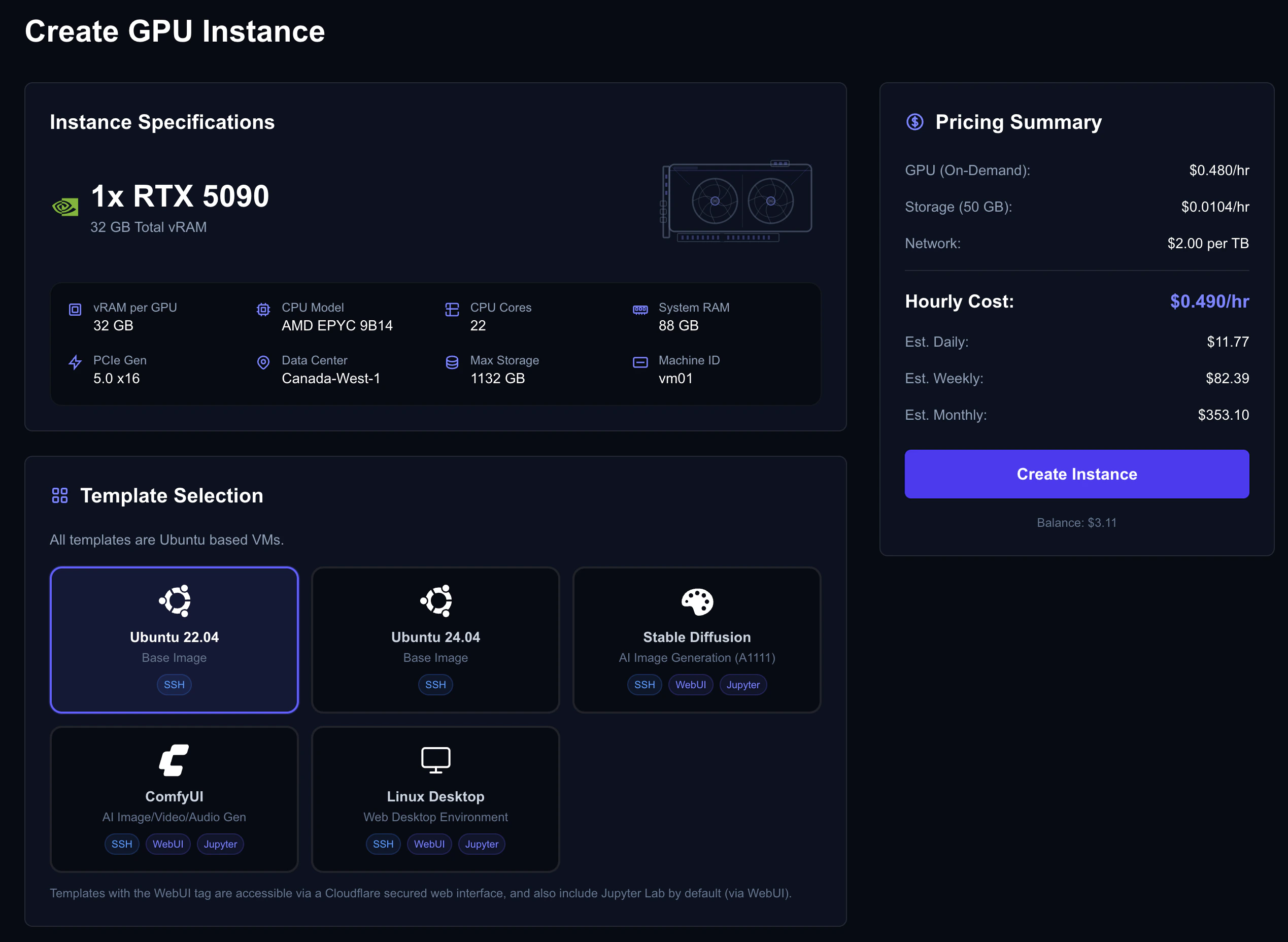
- Go to the Dashboard and browse available GPU offers
- Find a GPU that fits your needs (e.g., RTX 5090, RTX 4090)
- Click Create Instance on the offer
- Configure your instance:
- Rental type — On-demand (recommended for your first VM)
- Template — Ubuntu 22.04/24.04 (or choose a pre-configured template with WebUI access)
- Storage — Choose your disk size (Minimum 50GB)
- Authentication — Select your SSH key or choose a strong password to log into your instance with
- Review the pricing estimate and click Create
- Wait 1–10 minutes for provisioning to complete
Step 5: Connect to Your VM
Once your VM status shows Running in the dashboard: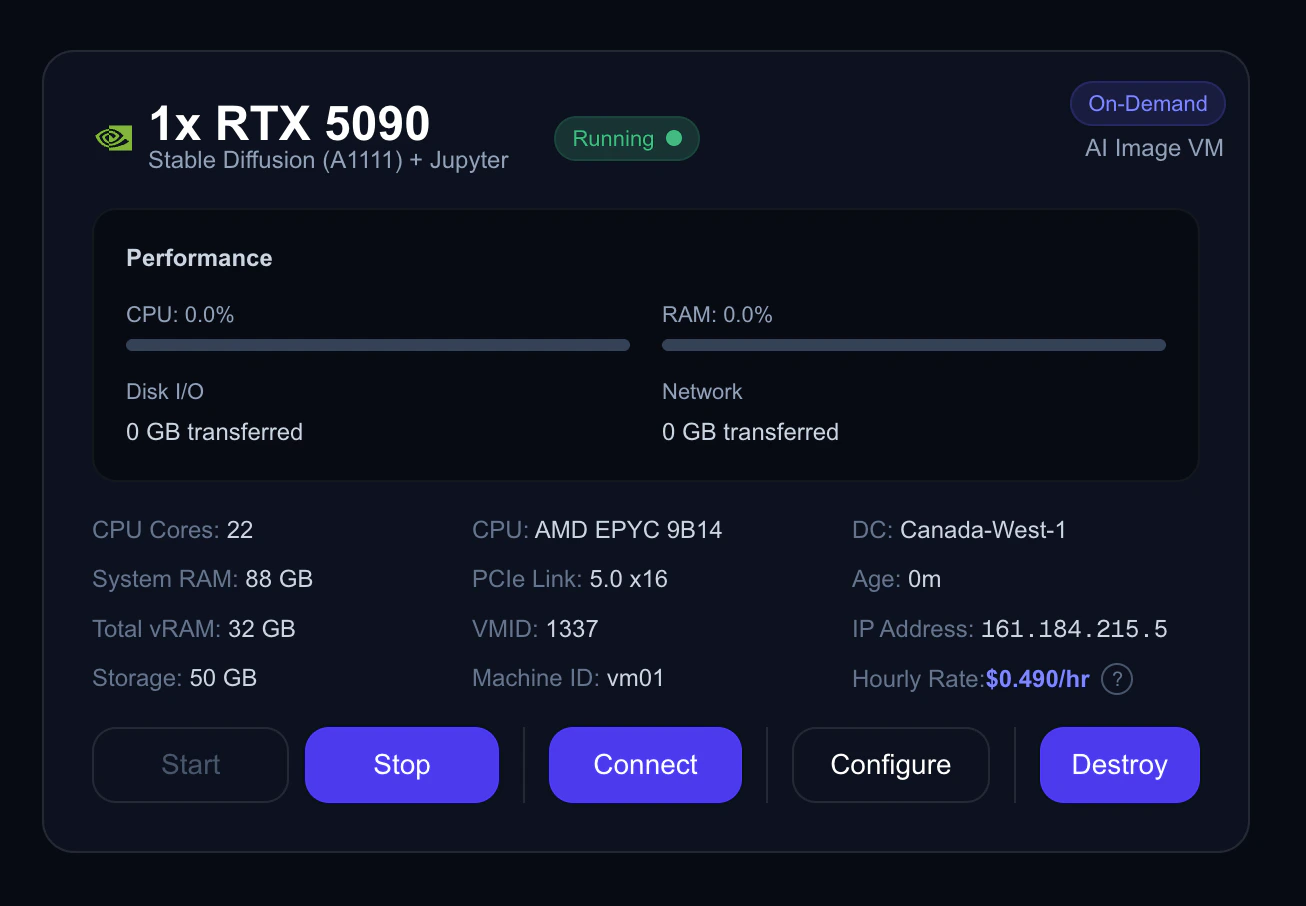
- Mac / Linux
- Windows
Open a terminal and run:Replace
<your-vm-ip-address> with the IP shown in your console dashboard.If this is your first time connecting, you’ll be asked to confirm the server fingerprint — type yes and press Enter.Step 6: Stop or Destroy When Done
When you’re finished, you have two options:Stop Your VM (Pause GPU Billing)
Click Stop on your instance in the dashboard. This pauses GPU billing while keeping your data intact. Storage charges continue at a small rate.Destroy Your VM (Stop All Billing)
Click Destroy to permanently delete the VM and stop all billing.What’s Next?
Choosing a GPU
Browse the marketplace and pick the right GPU for your workload.
Connecting to an Instance
Access your VM via SSH or the browser-based WebUI portal.
Instance Ports
Open ports for Jupyter, APIs, and other web services.
Rental Types
Learn how to save money with interruptible and reserved instances.
Billing
Understand pricing, auto billing, and what happens at zero balance.
API Reference
Automate your workflow with the Nova Cloud REST API.